Introduction
On the left side you see a hierarchical list of all folders in your mailbox, like Inbox, Draft, Sent, Junk, etc.
Folders can be used to file email messages by topic, sender, or whatever you choose. Incoming messages basically appear in the Inbox folder which is the first item in the folder list. There are some special folders that are used by the system to store sent Sent or deleted Trash messages and where not-yet-sent message drafts Drafts are saved. The number of unread messages in each folder is displayed at the right border of the folder list. Click a folder in the list to show the contained messages in the message list on the right. The currently selected folder is highlighted in the list.
Folders with hidden subfolders are indicated with a small [+] icon which can be clocked to expand or collapse the folder tree.
Folder Operations
In the top header of the folder list, click on the three-dot icon ( ) then the Folder actions icon shows a list of folder-related actions.
Most of the actions in the menu affect the currently selected folder.
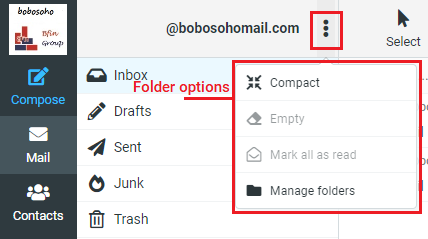
If we describe them as well the options are given below:
1. Compact: This action will compress the folder size by finally deleting messages that have been marked for deletion.
2. Empty: This action will delete all messages in the selected folder permanently. Be very careful with this operation as it cannot be undone. For security reasons, this action is only available for the Trash and Junk folders.
3. Manage folders: This item will take you to the settings section where you can manage the mailbox folders. This is where you can create, delete, rename, or re-organize your email folders as per you want.
Storage Information
If your mailbox is limited by a maximum size, the storage indicator is located in the footer of the folder list and indicates the current usage of the available disk space. Move the mouse pointer over the percentage display to see the real numbers of your disk/storage usage.
