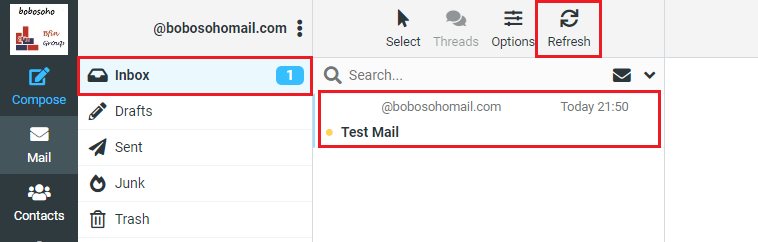
This part of the screen is displaying the list of all messages in the currently selected folder. The number of messages displayed in the list and the total number of messages. The application periodically checks for new messages and will update the display if new emails arrived. You can force this check manually by clicking the Refresh button in the email view toolbar
Open a Message
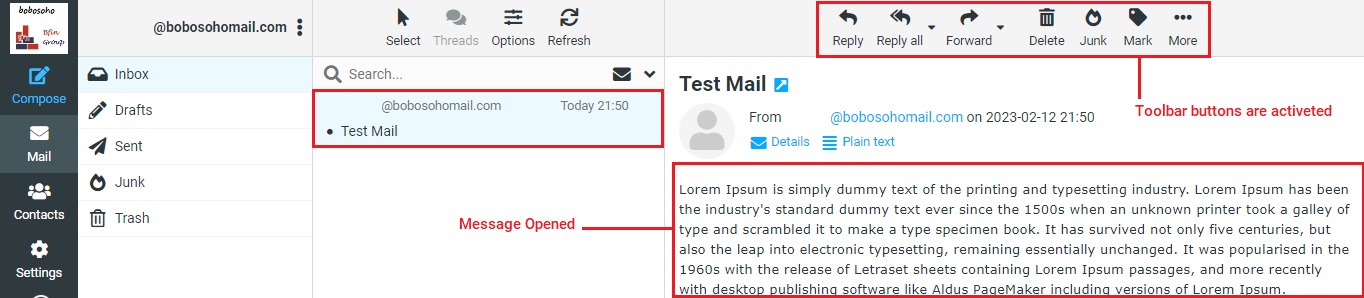
If the new message is visible in your inbox, you can open it using a single click on a message. It will display in the preview right below the list. In order to open a message in full view or a new window, double-click it with the mouse. Selecting a message in the list will also activate toolbar buttons that offer further actions related to the selected message, such as replying, forwarding, or deleting it.
Mark Messages Read/Unread or Flagged
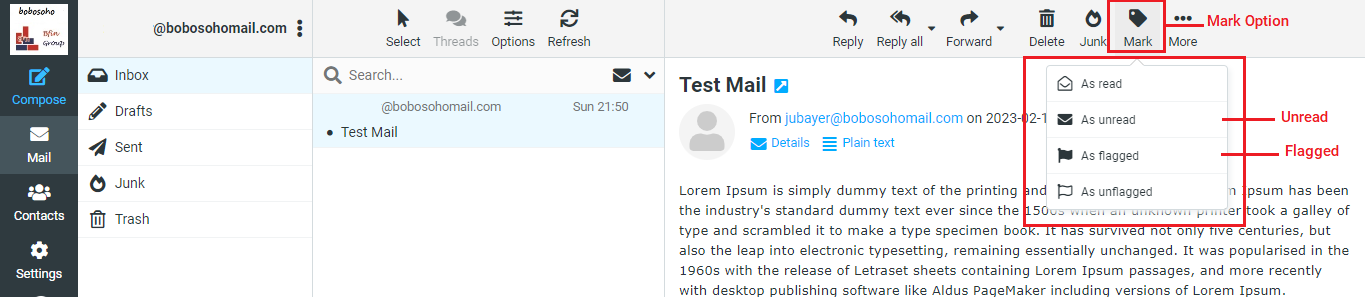
When you open an unread message from your inbox for reading, it will automatically be marked as read. If you want to flag or unread this message again then, keep looking at the Toolbar after selecting the message then click on the Mark option then the function will appear, now you can simply select the option that you are looking for.
Message List Sorting
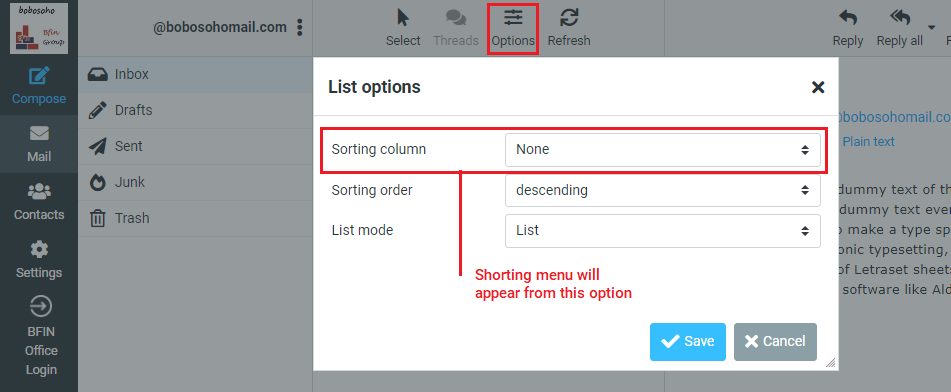
You can simply short or manage your inbox messages by shorting the option, the sorting order of the messages can be changed by clicking the column in the list header in which you’d like the messages to be sorted. From the shorting column, you can sort by Arrival date, Sent Date, Subject, etc.
Select Multiple Messages
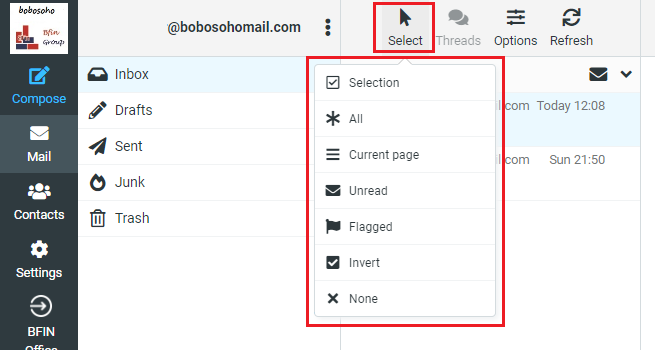
With a single click on the left side of the toolbar Select Arrow () you will find a menu with some options, then you have to click on the selection.
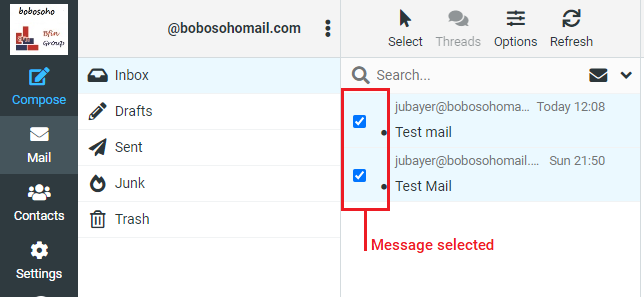
The according message is selected and highlighted. By pressing either the Shift or Ctrl keys on your keyboard while clicking on a message, you can select multiple messages or unselect them.
Select Multiple Messages
On the left side you see a hierarchical list of all folders in your mailbox, like Inbox, Draft, Sent, Junk, etc.
Folders can be used to file email messages by topic, sender, or whatever you choose. Incoming messages basically appear in the Inbox folder which is the first item in the folder list. There are some special folders that are used by the system to store sent Sent or deleted Trash messages and where not-yet-sent message drafts Drafts are saved. The number of unread messages in each folder is displayed at the right border of the folder list. Click a folder in the list to show the contained messages in the message list on the right. The currently selected folder is highlighted in the list.
Folders with hidden subfolders are indicated with a small [+] icon which can be clocked to expand or collapse the folder tree.