Contacts Management
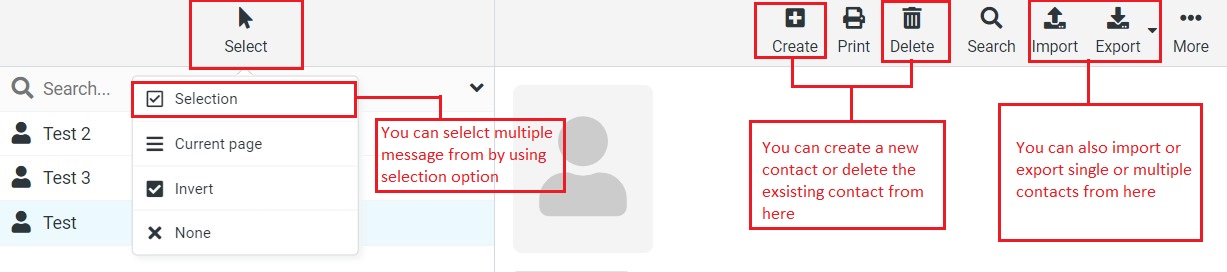
The footer of the contacts list provides buttons that operate on the list or the current selection of contacts relatively:
Create a new contact
Delete selected contacts
Remove selected contacts from the group
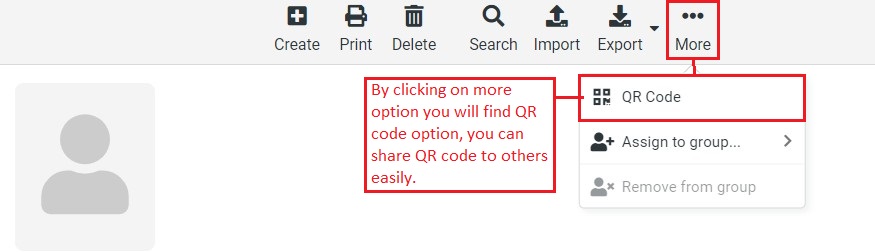
Share contacts using the QR code
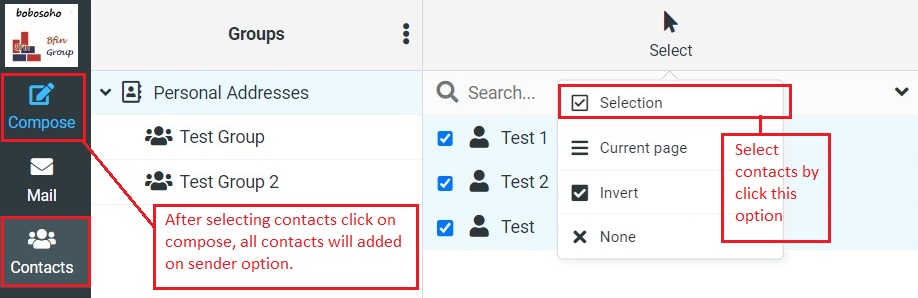
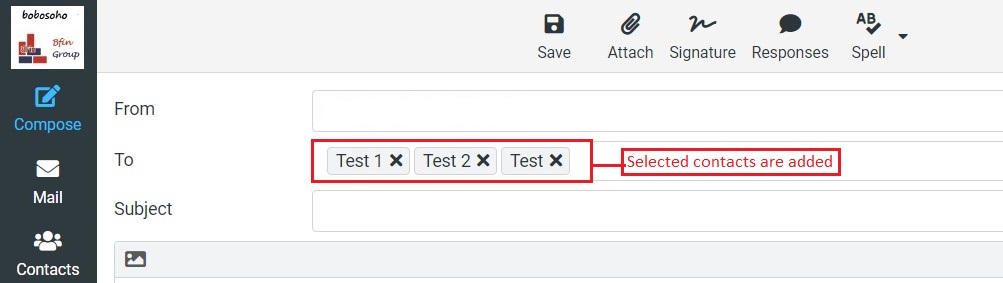
Send to Selected Contacts
The address book is not only to manage your contacts but you can also search and select contacts to you want to write a new email message to. The Compose icon on the toolbar above is activated as soon as you selected at least one contact or a contact group. Click it to open the compose screen with the selected contacts filled in as recipients.
To start writing an email to a single contact, you can also click the email address in the Contact Details area on the right.
Copying Contacts
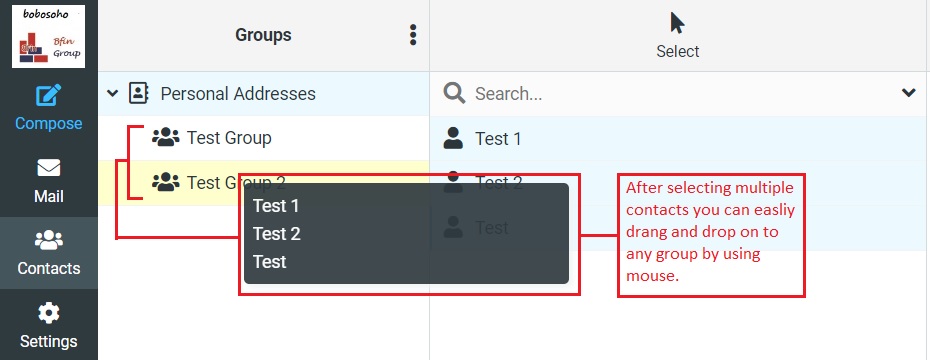
Contacts can be copied from one directory to another in a similar way as assigning them to groups. Simply drag one or multiple selected contacts with the mouse and drop them onto the target directory. Please note that some properties might be saved into other fields or not be copied at all if the address directories have different schemas.
Contact Details
Note: You can add/delete/edit contacts from here easily.
