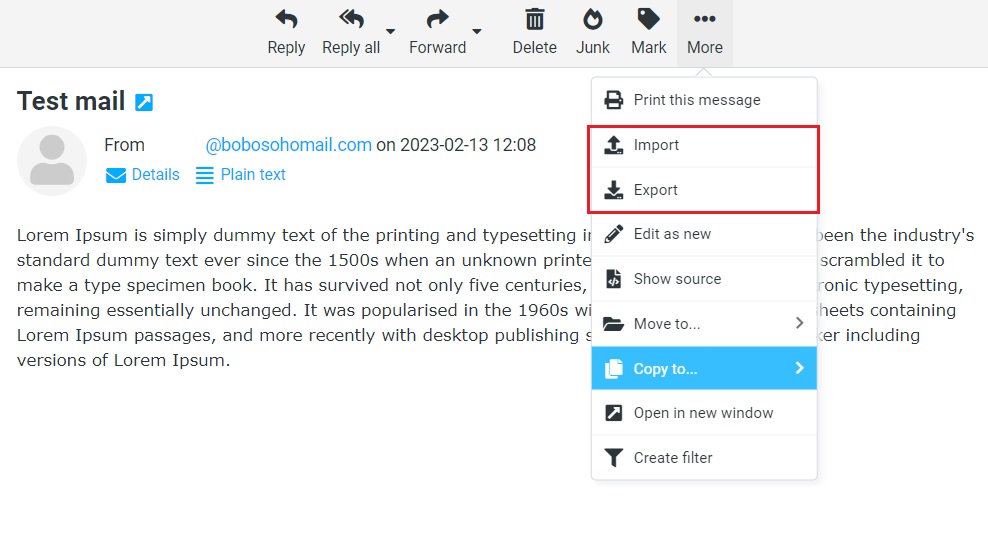
One or multiple files with either MIME or Mbox data can be uploaded to add email messages to the currently selected folder:
Click the folder where the imported messages should be added.
Select Import messages from the Folder actions menu behind the gear icon in the folder list footer.
Select the file to import from your computer’s hard drive. You can select multiple files in the file picker dialog by holding down the Shift or Ctrl keys while selecting a file.
Press Upload to start the import process.
Export Messages
Messages from your inbox or any other folder can be downloaded to your computer for archiving or backup. When exporting, messages will be saved as single .eml files.
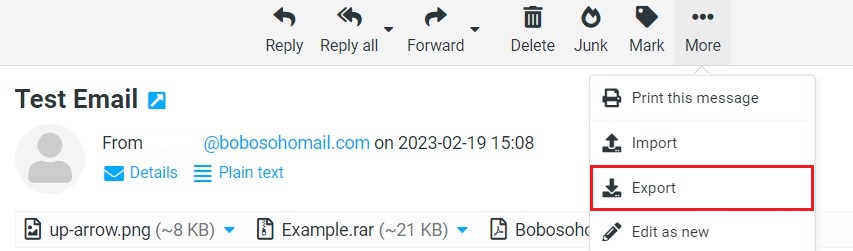
You can easily download messages in single or multiple ways, to download an email message, select a message in the Messages List and then choose Download (.eml) from the More menu in the toolbar. Choose where to save the exported .eml file if prompted, otherwise, find the file in the “Downloads” folder on your computer. For multiple Downloads; Multiple messages will be packed into a Zip file for downloading. Select individual messages in the Messages List and follow the instructions for downloading a single message. You must unpack the downloaded .zip archive to access the individual message files.