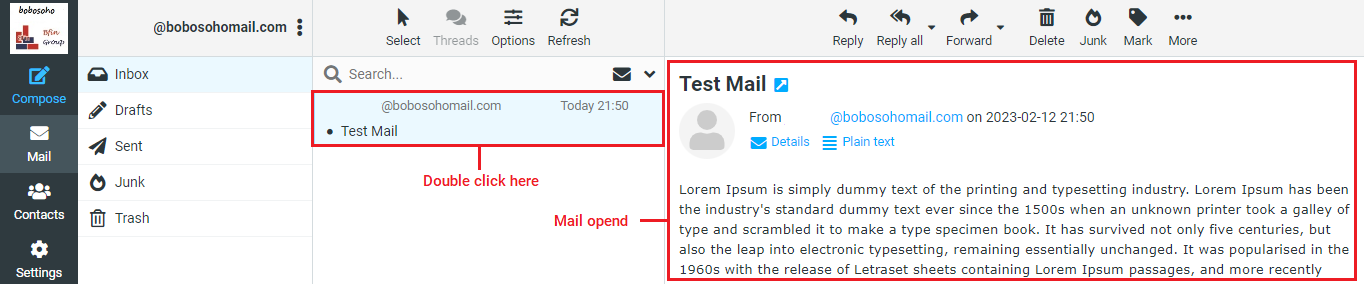
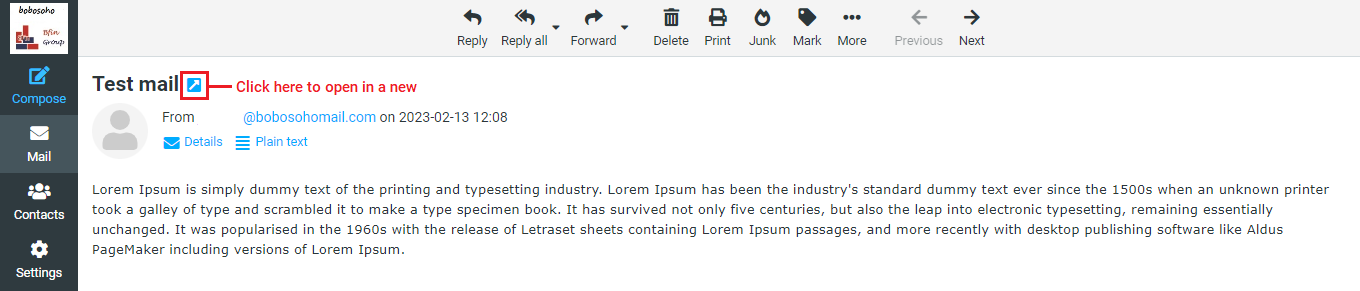
Double-clicking a message in the list opens it in full size or in a new window, The header block now shows all message headers including a photo of the sender if one is found in your address book.
Open Message in a new window
While looking at a message in the preview pane, it can be opened in a new window by pressing the button. When opening a message in full-size view, the toolbar above shows buttons for possible actions to choose for this message.
Move to another folder
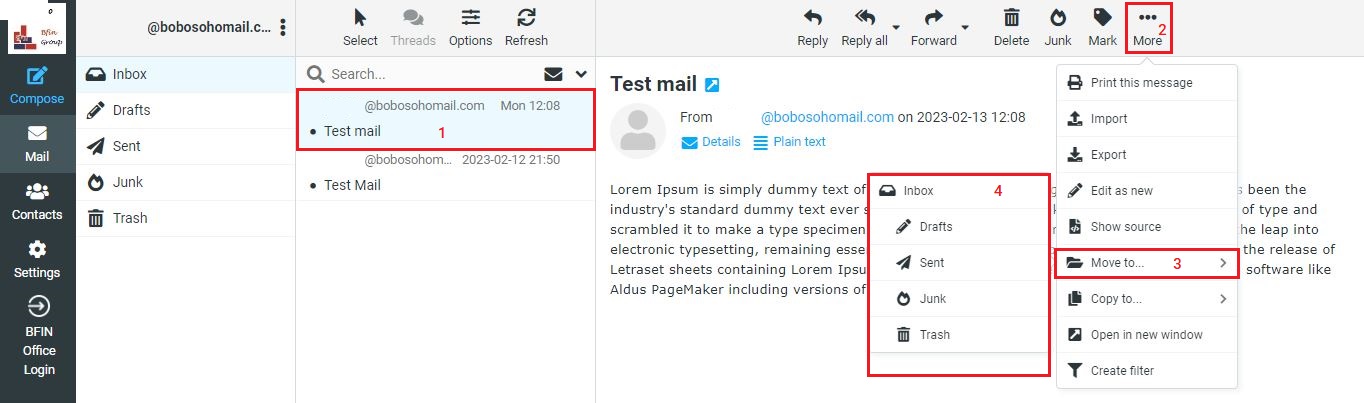
We can easily move messages from each folder to another folder easily just only four steps. First, use the drop-down list on the top right of the toolbar, Secondly, click on More options, Thirdly click on Move to then chose the folder where you want to move the current message.
When a folder is selected from that list, the message is moved there right away and the window will display the next message in the list.
Add Contacts to Addressbook
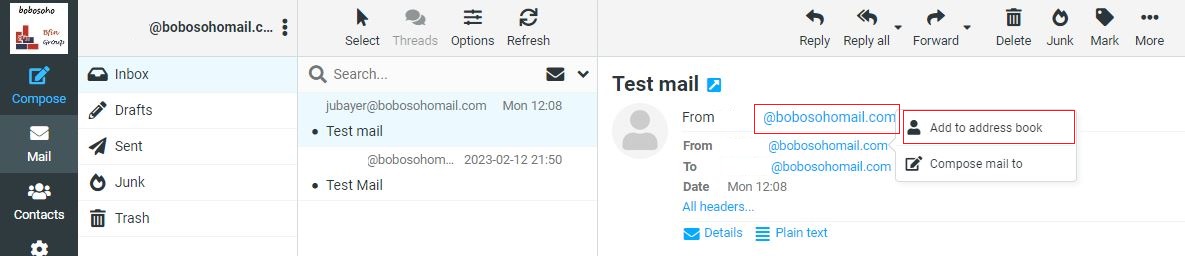
Every email address referenced in the current message, either as sender or recipient, can be saved to the address book with a single click on the Add to address book by clicking on this icon
It won’t be saved twice if a contact with that email address already exists in the address book
View & Download Attachments
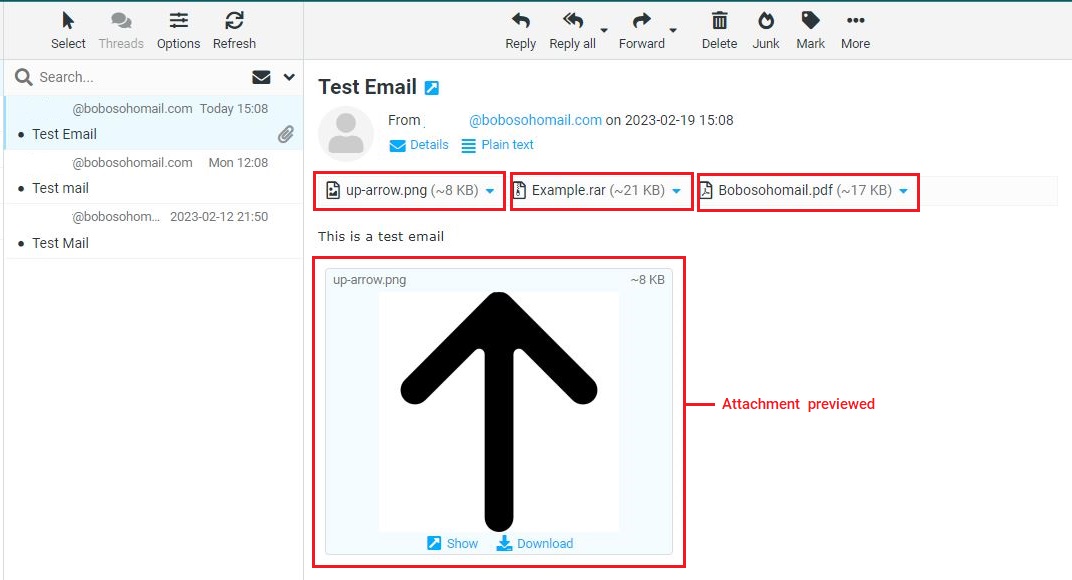
If the opened message has any files attachments, these are listed on the right, next to the message text. Click on the file name to open or download it. If the file can be displayed directly in the web browser, a preview window will be opened showing the attachment. This will happen for images, text files, and PDFs if your browser indicates being able to display them.
Otherwise clicking the file name will initiate the download process and a dialog will most likely appear, asking you where to save the file. If that doesn’t happen, check the default “Downloads” folder on your computer for the attachment file.