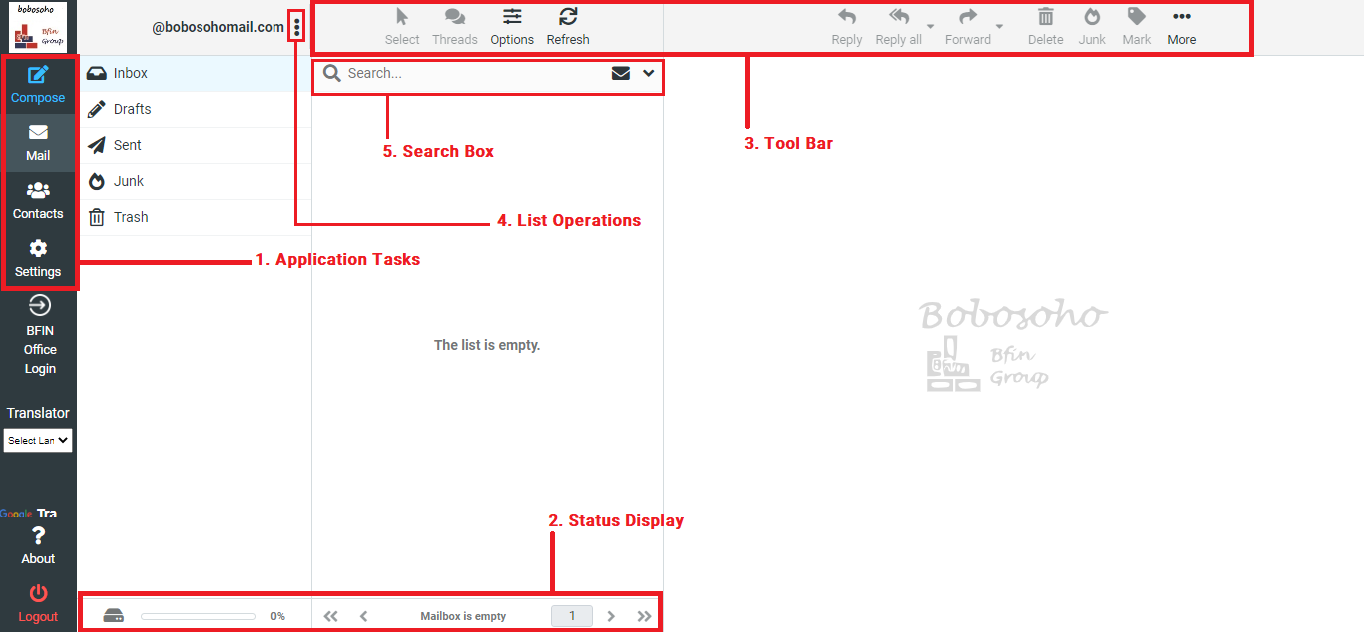
Once authenticated, the screen of Bobosohomail is divided into five functional parts which are explained here:
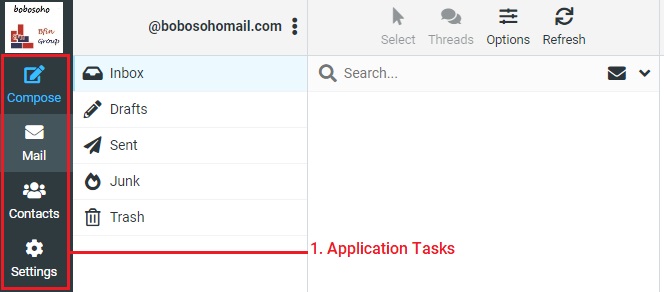
Application Tasks
Bobosohomail application provides different main tasks such as Email, Address Book, Settings, etc. Use this list to switch from one task to another. That will reload the screen with a specific view for the selected task. Below the main tasks, the button to terminate the current session (Logout) is also located here.
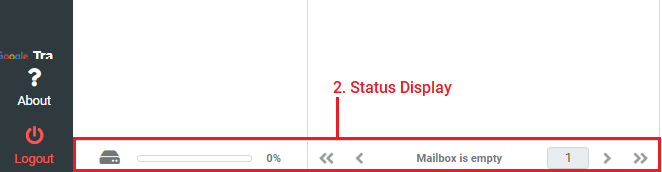
Status Display
This area of the screen is dedicated to displaying status notifications ( confirmations, warnings, and errors) about the success or failure of the operations you just executed in the Bobosohomail. While the app is working or loading data, a notification is displayed here.
Toolbar
The main toolbar is always located above the content area. It allows you to perform different actions, depending on what is being shown or selected in the content part of the window. If buttons are grayed out, the according to step is not available for the current selection. If a toolbar icon shows a small arrow on its right side, clicking that indicator will present variations of the action to be executed.
Additional actions can be found by clicking the More button.

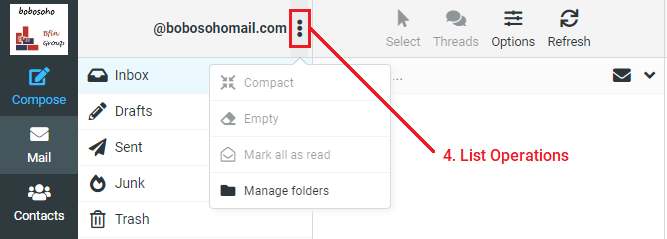
List Operations
The icons in the top area and right side of the user name of a list provide actions that influence the list above or the currently selected element of the list respectively. The three-dot icon () usually opens a menu with additional actions.
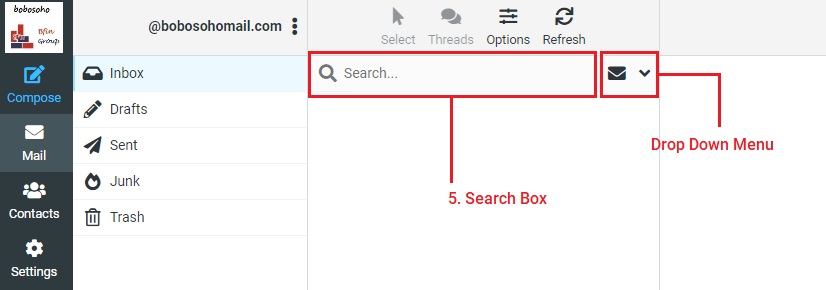
Search Box
In the Bobosohomail the search option is an amazing feature, If the currently selected task allows searching for data then Enter a search term and press on the keyboard to start searching. To reset the search, click the clear icon on the right border of the search box.
There might be search options hidden in a drop-down menu that opens when clicking the search icon left in the search box also you can modify the search option as you want.
There might be search options hidden in a drop-down menu that opens when clicking the search icon left in the search box also you can modify the search option as you want.
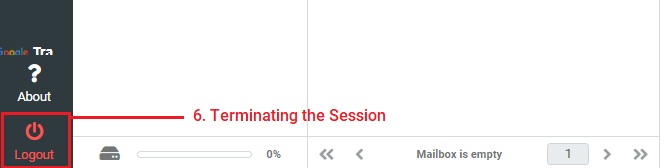
Logout
Once your work is done on the webmail application, it’s important that you properly terminate the current session by clicking the Logout. This will make sure that no other person accessing your computer can read or delete your emails or send them on your behalf. Simply closing the browser window is not enough to log out!